Sharing and collaboration
Choose the kind of recipient first. A person opening a public web link does not join your hub. Another Tape owner can join a collaborative playlist or receive a track through their own hub.
| I want to… | Use | Requirement |
|---|---|---|
| Let someone listen in a browser | Public share link | Licensed public route and the hub online |
| Edit a playlist with another Tape owner | Collaborative playlist | Collaborative playlists module and reachable hubs |
| Send a track to another Tape hub | Share with another Tape Hub | The same collaboration module |
Public web links
- Open Share for a track, album, artist or playlist.
- Check that a public route is configured and the share UI reports it ready.
- Copy the public link and open it in a separate browser to check what a recipient sees.
- Keep the hub online while they listen.
The recipient sees a standalone page for that shared item, not your full library. An Iroh identity alone is not a public browser URL. Sharing a public page may require the optional public HTTPS route even when your paired phone works over the private connection.
The share dialog can also create a secret link with Expire after. Choose its lifetime and copy the generated link. An expiring secret link is different from a plain public share URL; do not assume that expiry disables every other public URL for the same item.
If the hub's public base URL shows a splash asking for a share link, that is expected with Shared pages only. It does not remove access from an already paired phone. For operator details, see Public hub root vs share links.
Collaborative playlists
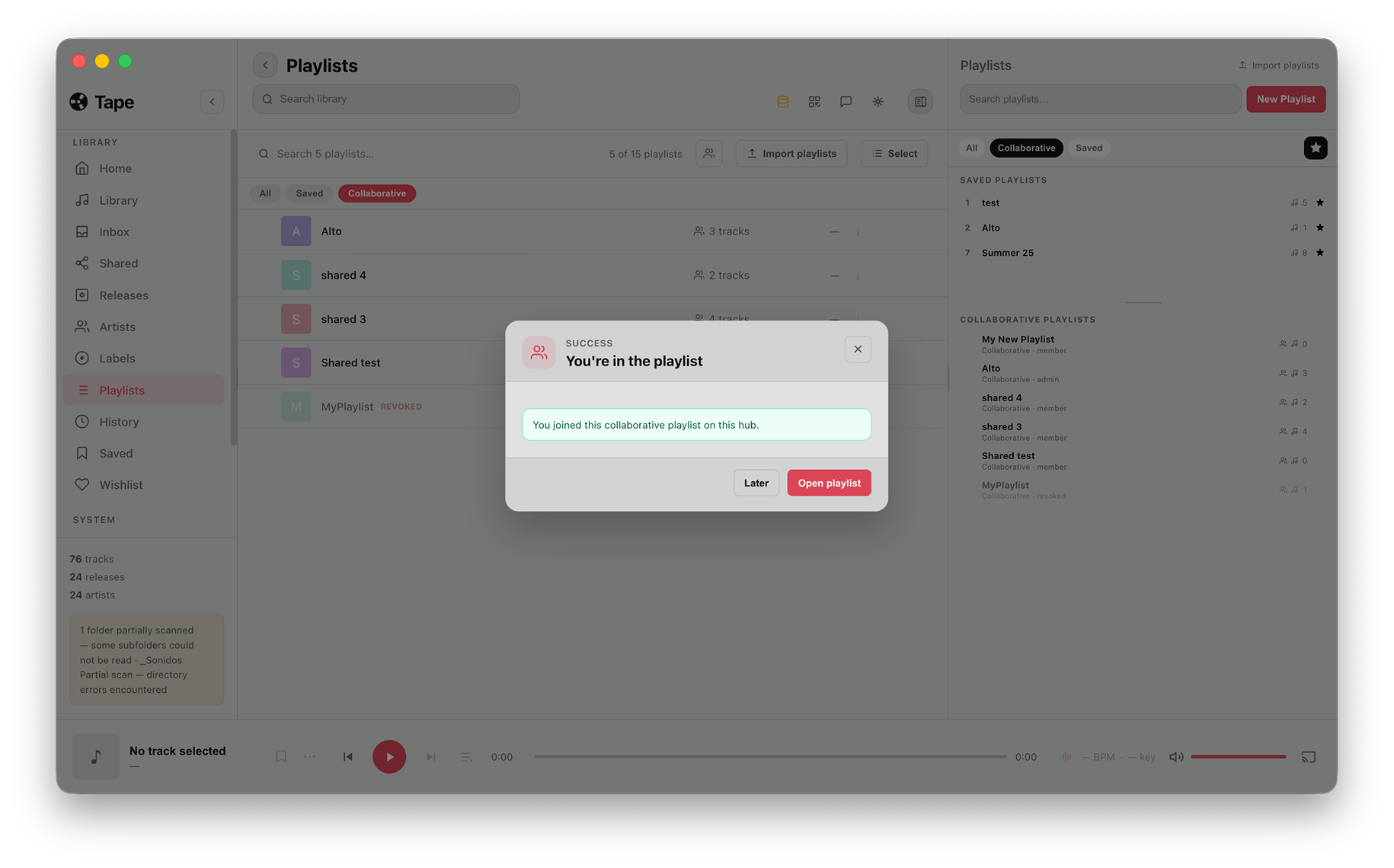
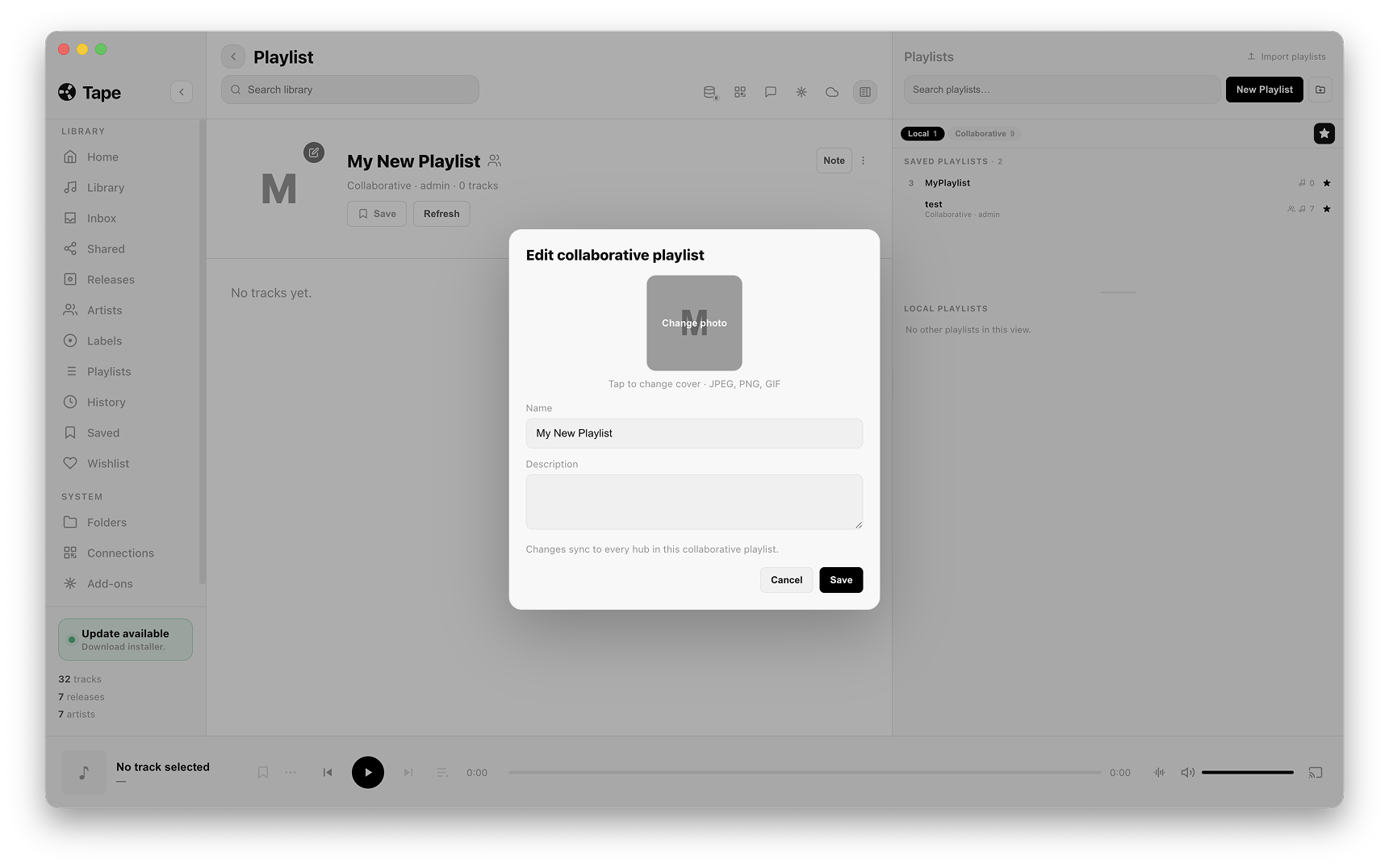
These examples were captured on different hubs and playlists, so their names differ. Use your own playlist name and hub identity when checking an invitation.
Invite another Tape owner
- On Desktop, create or open a normal playlist.
- Choose Make collaborative from its people icon, then Copy link in the invitation dialog. Send the private link to the other Tape owner.
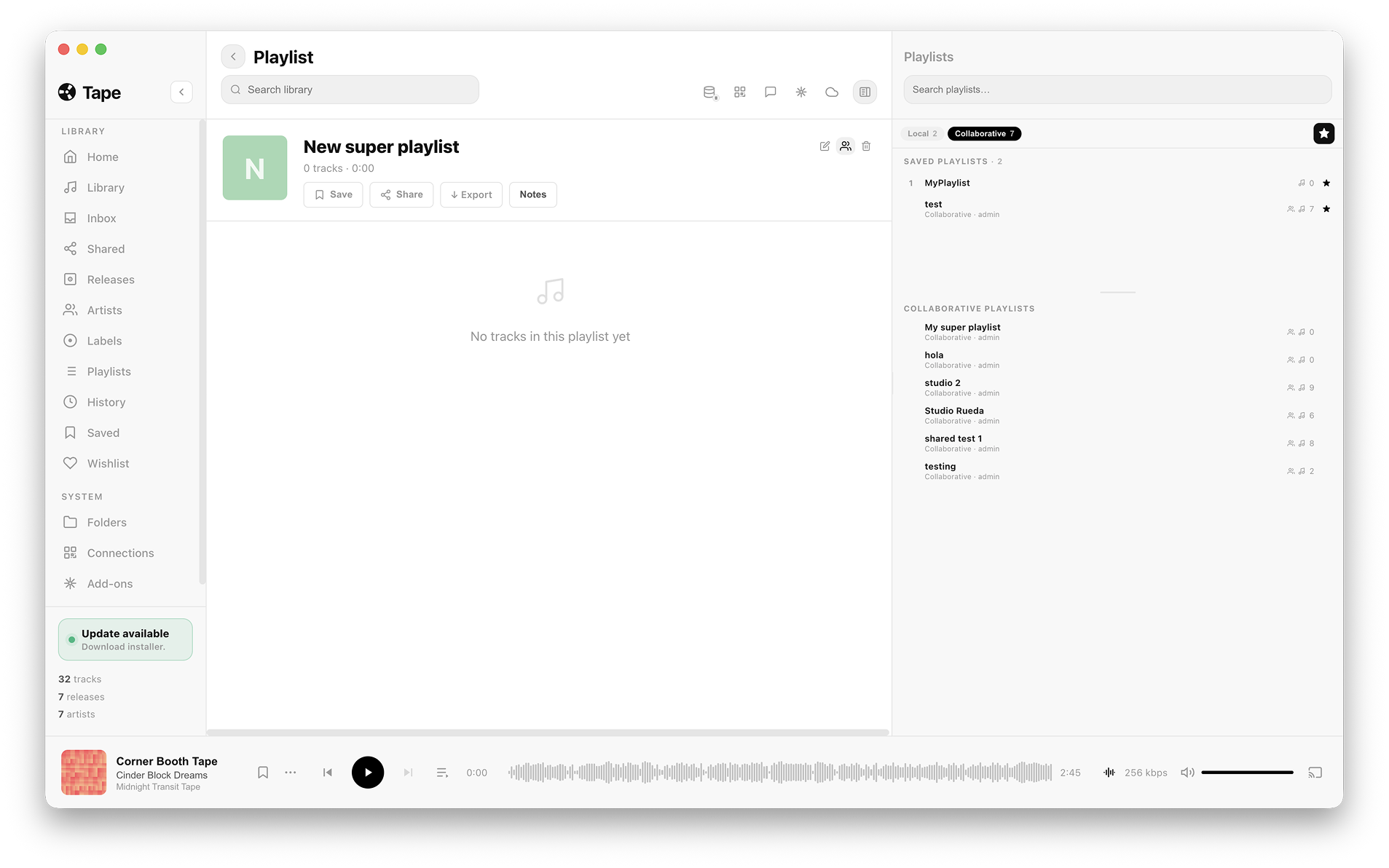
Open and review the invitation
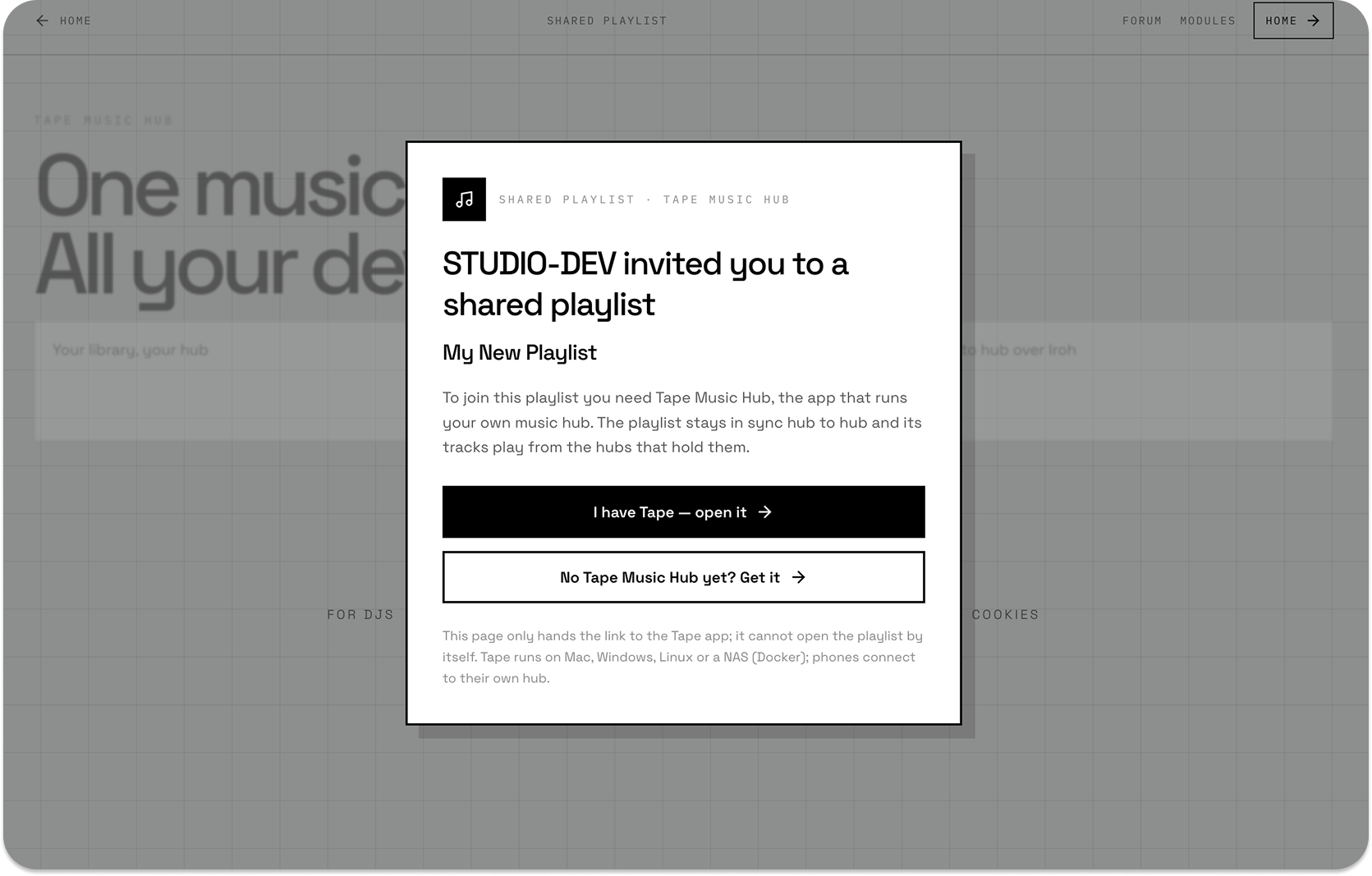
- The recipient opens the link. On the web invitation page, choose I have Tape — open it to hand it to the installed app. This page does not play the playlist in the browser.
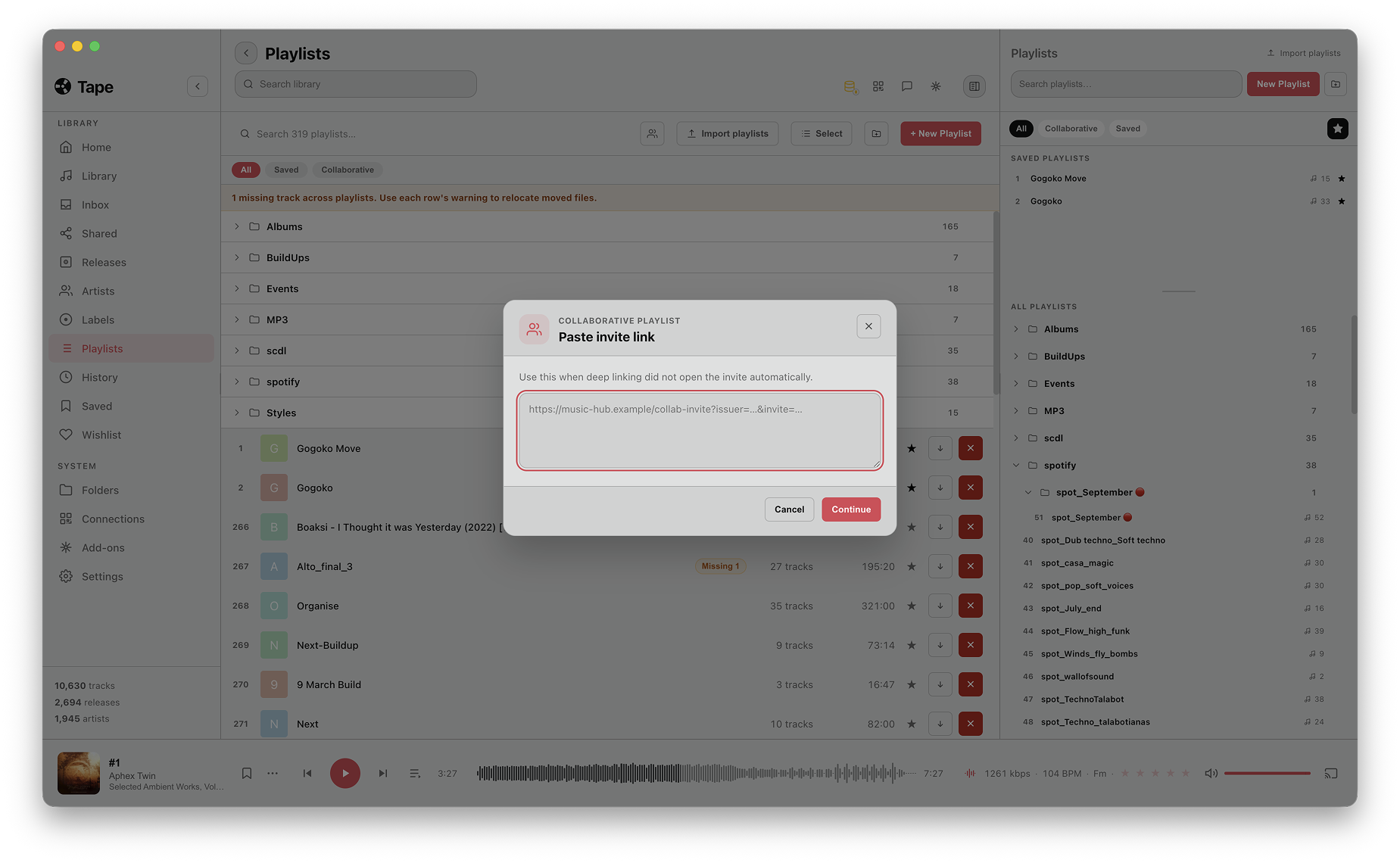
- If the link does not open in Tape, use Join collaborative playlist in Playlists to open Paste invite link. Paste the invitation and choose Continue.
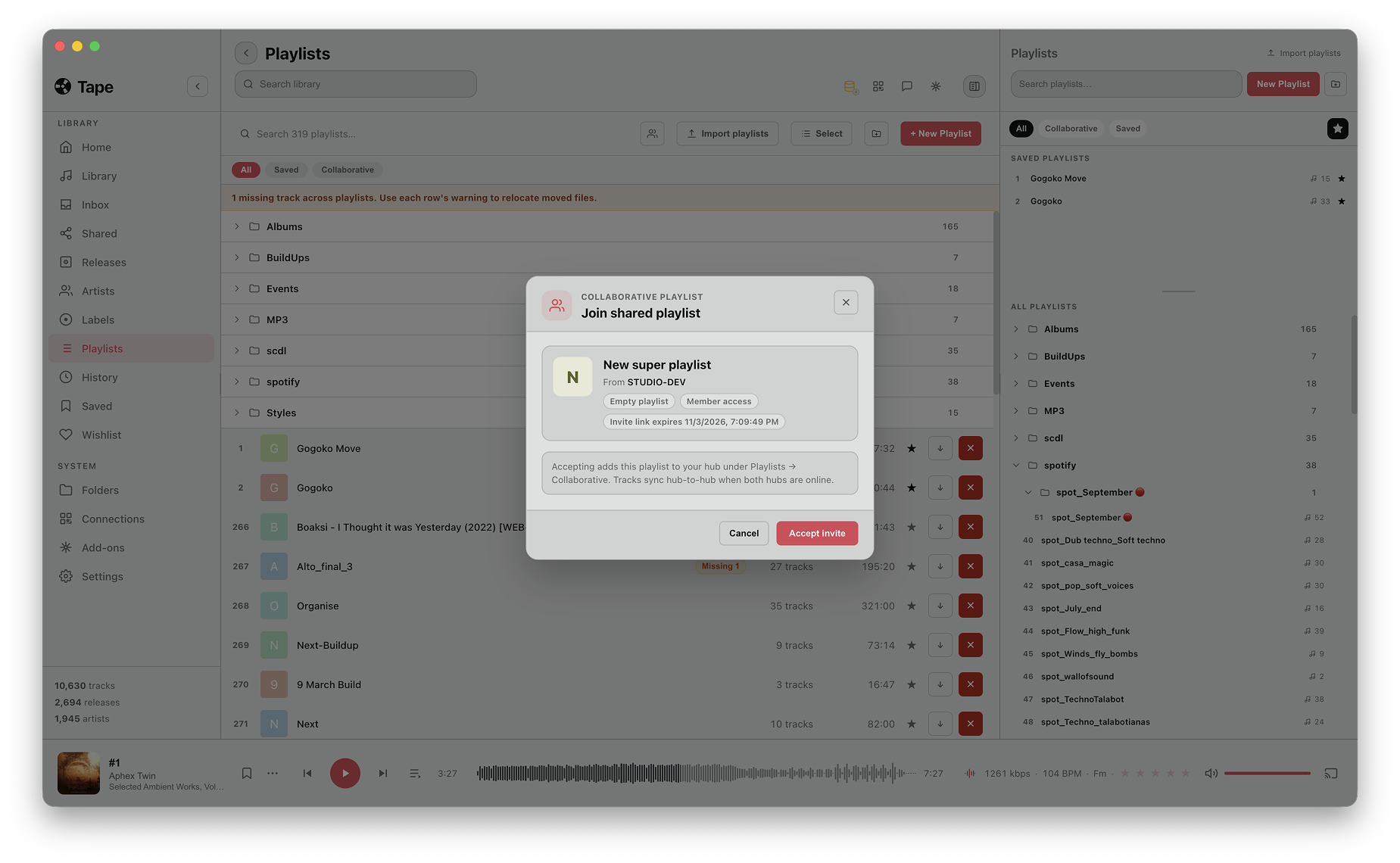
- In Join shared playlist, check the playlist name, source hub, access and expiry. Choose Accept invite only for the playlist you intend to join.
- After You're in the playlist, choose Open playlist. The playlist is now joined on the recipient’s hub.
Edit playlist details
If your role exposes the edit control, open Edit collaborative playlist. Update the cover, name or description, then choose Save. Check the result on this hub and let the other hub reconnect before expecting it to show the change.
Admins can invite, revoke and promote members. Editing and streaming depend on member permissions. Your phone still talks to your own hub; that hub reaches the source hub for remote tracks.
The source hub must be online for a track streamed from it. If a supported Import to library action is offered, review the download confirmation and result before assuming you now have a local copy. Pending/failed imports are not playable offline copies.
Share one track with another hub
Open Share → Share with another Tape Hub. Copy that link and send it to the other owner. The invite works for one hub and expires in seven days. The recipient chooses Add to my hub; streaming still comes from the source until an explicit import has completed.
The collaboration module being disabled hides these entry points but does not delete the stored collaboration data. Revoking a member is a separate permission change. See Modules if a control is missing.
Stop sharing or handle a failed invite
Use the available member/revocation controls for collaboration. For a secret public link, check its configured expiry; for broader publication, review the hub's public route and share settings. Turning off a public route can affect other recipients, so check the scope first.
Ask for a fresh invite if it expired or was already claimed. For an offline source hub, wait for it to return; repairing pairing or rebuilding your local database will not bring that remote source online.