Modules
Optional product features are modules. Tape manages them in Add-ons; the website sells available paid modules. A module can be owned but switched off. Third-party plugins are a separate preview system.
Enable an owned module
- Open Add-ons on the hub.
- Select the module and check its ownership and status.
- Enable it, then return to the feature it adds.
- If it is locked, refresh the license in Settings → License and check purchase recovery.
A paid feature on the phone needs both the phone's valid entitlement and an enabled module on its hub. Disabling a module keeps its stored data; do not confuse disable with an explicit delete action.
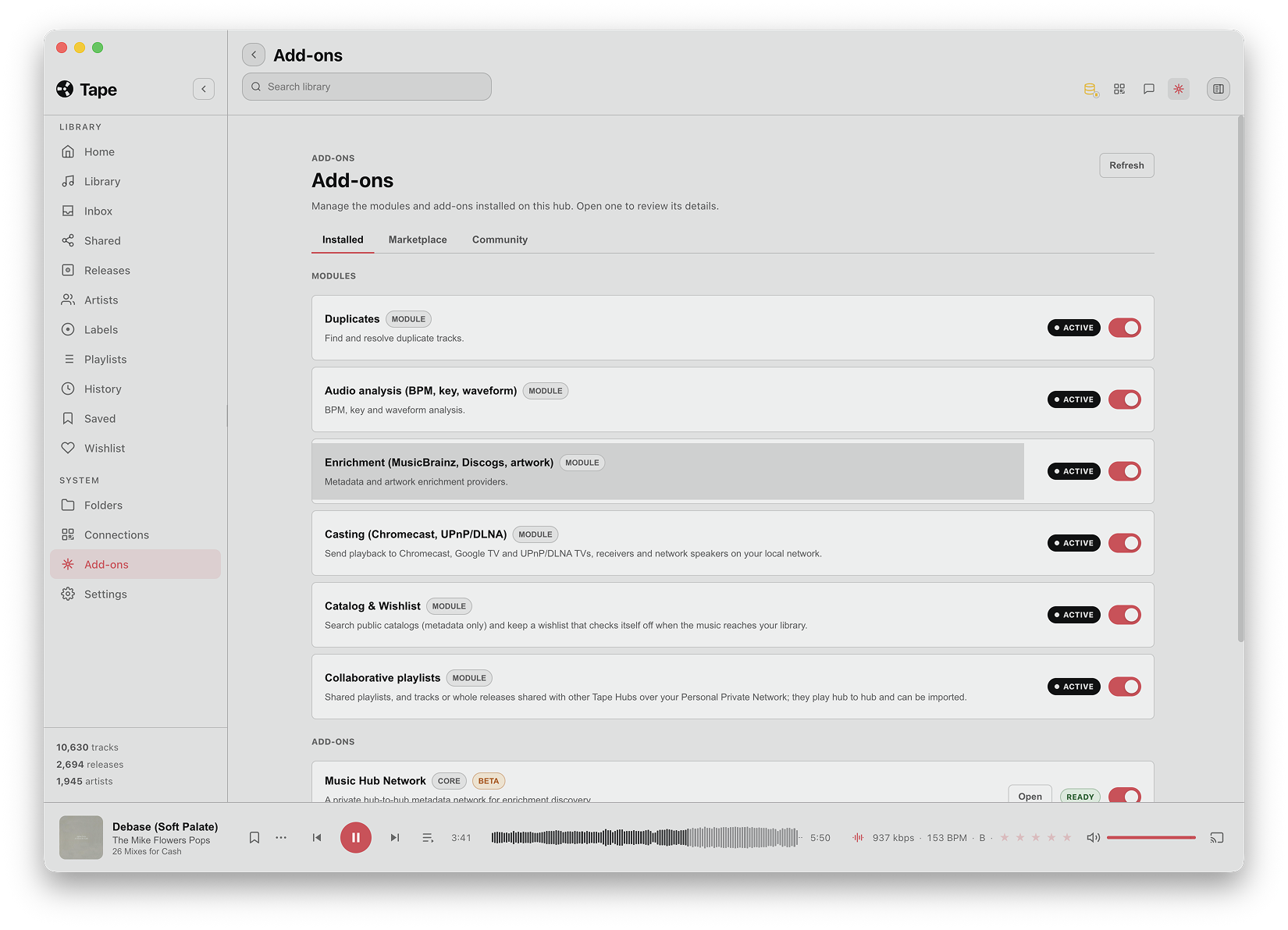
Duplicates
Open the duplicates view available through Add-ons or Settings → Database. Review the suggested group, compare the files and choose the copy to keep. Read the confirmation: resolving a group can move extra files to Trash and preserve/reassign playlist links as described there.
Do not treat all matching titles as interchangeable audio. Check version, duration, format, quality and path. Inbox undo does not restore a duplicate file operation. Back up important files before cleanup and verify the resulting playlists.
Audio analysis
Enable Audio analysis for BPM, musical key and waveform work. Start or pause the available processing controls in Settings → Database or the track's analysis control. Existing imported DJ metadata and newly computed values have different provenance.
Analysis runs on the hub and can take time. A missing value or failed job is not proof that the file should be deleted. Check status, try a known track and let playback keep priority. Do not assume every quality/transcode-detection feature in the roadmap is already released.
Enrichment
Open a track's metadata/enrichment view, search MusicBrainz or Discogs and review the candidate. Apply the fields you want, then check the result in both the detail page and the list you came from. A provider result is not always the correct release or recording.
The search sends metadata/query text to that provider. A normal scan reads your files locally; it is not the same as an external enrichment search. Library edits and writes to the audio file are separate decisions.
Catalog & Wishlist
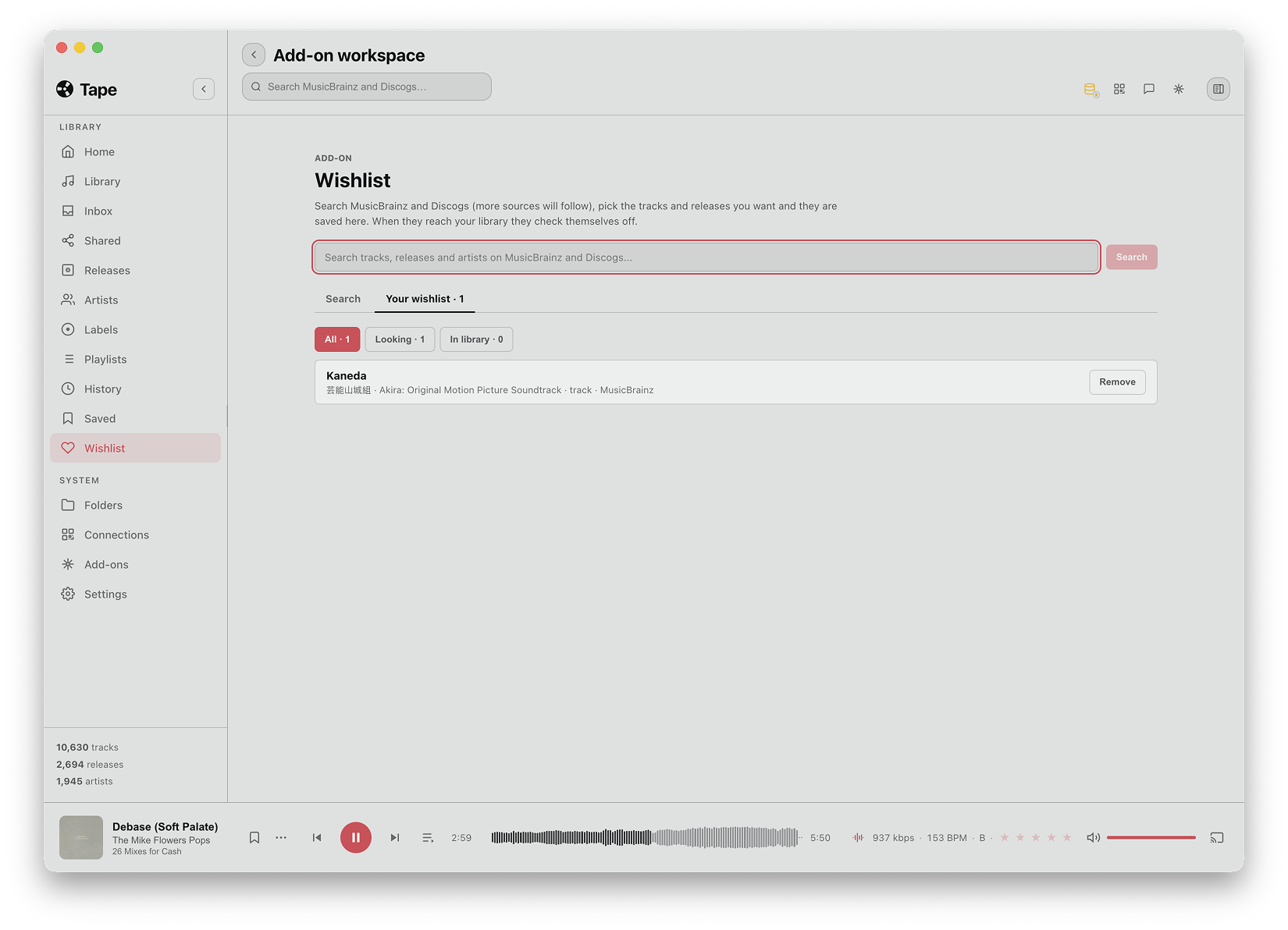
Enable the module and open Catalog & Wishlist from the library navigation. Search the supported catalogs and add an item you want to find. The hub marks an item achieved when its provider identity matches music indexed in your library; a matching title alone is not sufficient.
Clean achieved archives achieved entries while keeping their history. A Bandcamp link, when catalog relationships provide one, may refer to the track, release or artist: read its label. This feature searches metadata and legitimate links; it does not download audio from those services.
Tags and artwork
Open track details and use the edit controls to change title, artist, album, year or tags. Changes can be stored in the library without changing the audio file. Confirm the separate file-write option when you want supported embedded tags updated; a read-only Docker music mount cannot do that.
In the artwork editor, add or replace the front cover or supported supplemental image. Removing a cached image from a track does not delete the audio file. Settings → Database → Release artwork controls extra image downloads and optional embedding. Downloading more covers and embedding them into files are different settings.
Keep a file backup before a batch write. Supported text-tag and artwork formats differ; an unsupported or unwritable file should report a failure, not silently imply success. Reopen the track to check the result.
Other modules
- Casting: free; enable it before looking for its output control.
- Collaborative playlists: paid module for hub-to-hub playlists and track sharing.
- DJ import and Tag writer: current core functionality; their separate paid-module packaging is planned. See Licenses and modules.
- Music Hub Network: metadata-only core add-on preview. It is different from the private connection used by your phone. Its availability depends on the build; see its preview contract.