Devices and hubs
A hub owns a library. A phone or desktop client connects to a selected hub. Two hubs collaborating still keep separate libraries.
Pair a phone
Use Phone pairing and remote for the QR, timed link and optional first pairing away from home. Pairing creates credentials for that device; you do not need a new QR every time you change networks.
Reconnect after leaving home
Keep Tape running on the hub and let the phone try its saved connection. It prefers a usable LAN route, then the Personal Private Network, then an optional configured public route. A temporary offline state does not mean pairing has been lost.
If it stays offline, check power and internet on the hub, the phone's network and the displayed connection error. Do not remove the saved hub just to retry a network outage. Re-pair when credentials are definitively invalid/revoked or the hub identity changed, not for every failed connection.
Use another computer as a client
In Desktop builds with Client mode, choose which computer will keep the library before connecting.
- On the primary hub, open Connections. Under Use another Tape, choose Set up, then This computer is the hub.
- Keep its Pairing window open and use Copy link. Treat that link as private.
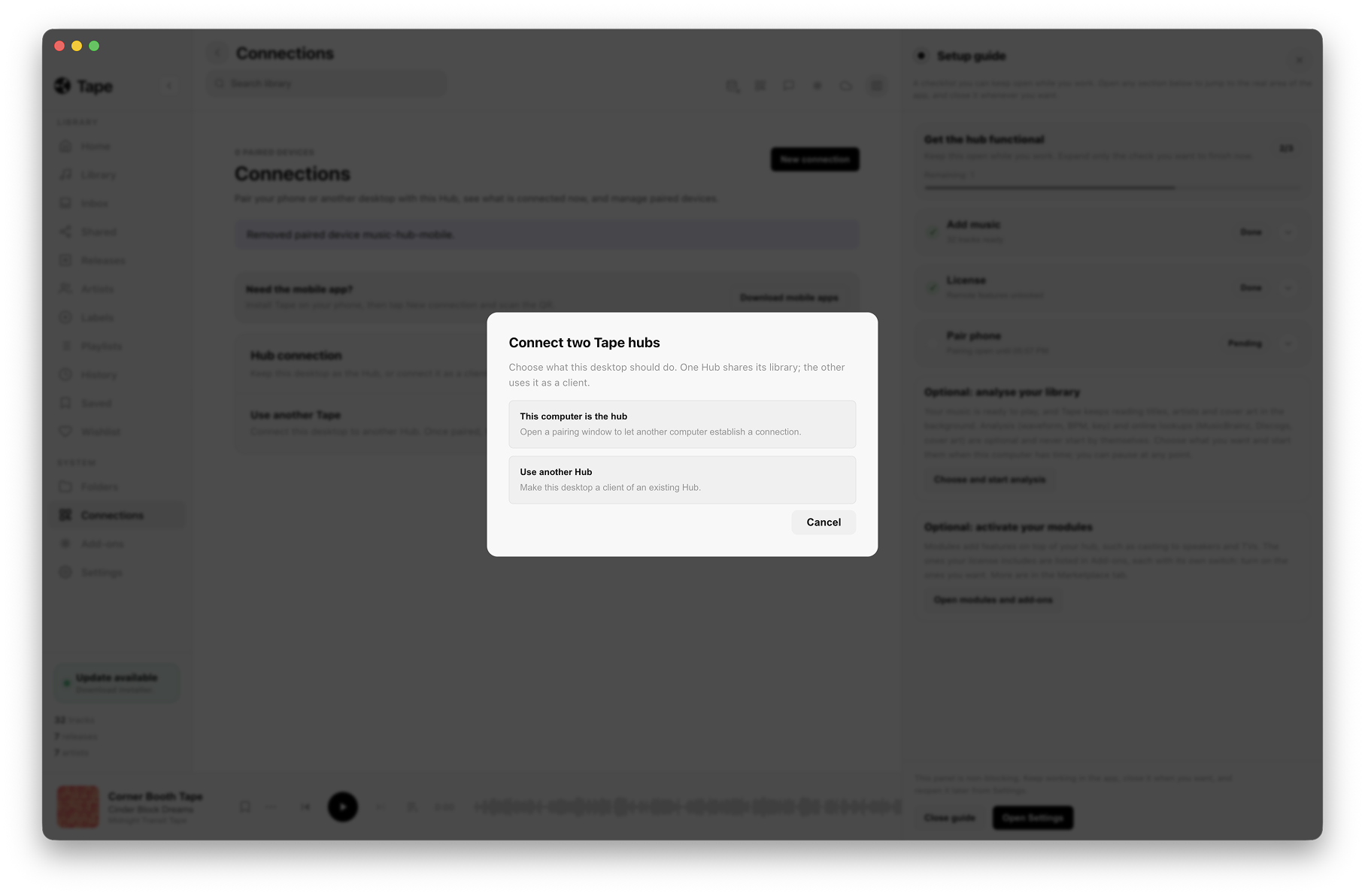
- On the client computer, open the same setup and choose Use another Hub.
- Paste the link into Connect to another Hub, then choose Review connection. Confirm the hub name before switching.
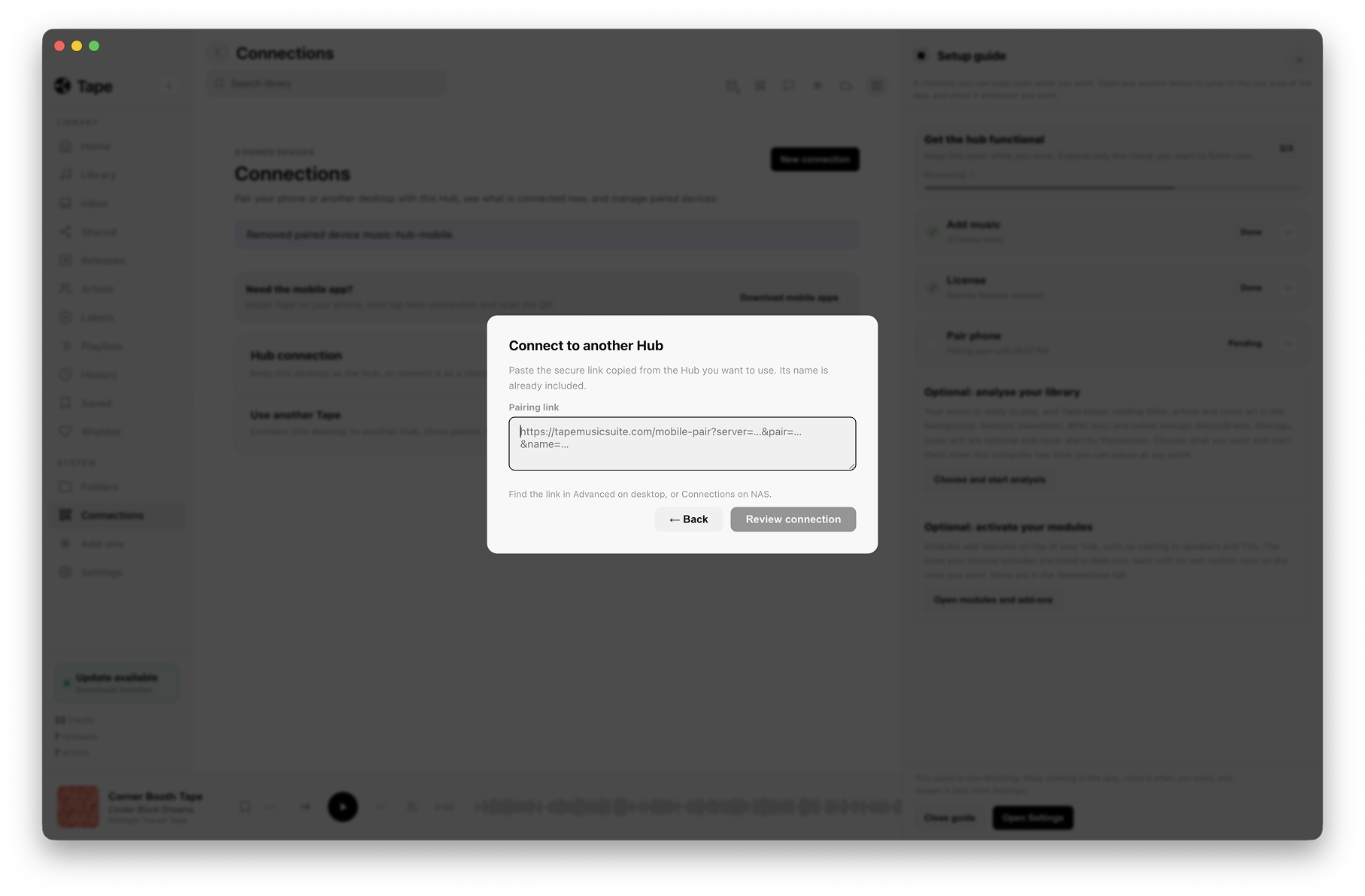
The client displays the selected hub's library and uses its permissions and routes.
Switching to a remote hub does not merge the two catalogs or delete the client's local library. Where local folders are shown separately, they are browse/play sources rather than automatic additions to the remote catalog. If the selected hub is offline, the client should say so instead of silently showing a different local library.
Use Disconnect and use this device as hub to return to the local hub. Confirm the local library and settings are still present. Check your installed build's controls; screenshots from a newer beta do not establish Client mode availability in an older release.
Remove access for a device
On the hub, open Connections and review paired devices. Identify the device by its name before removing/revoking its access. The device must pair again if it needs access later. Disconnecting a client locally and revoking its credentials on the hub are different actions.
Never put a live pairing QR, pairing code, license key or private recovery link in a public screenshot. For a graphical review, use a test hub and redact those values after capturing the UI.
Multiple hubs and family use
Decide which hub a device should use before pairing or switching. A shared household library does not imply independent user accounts, merged catalogs or offline copies. Use separate hubs when the libraries should stay separate; collaboration is an explicit sharing feature.