Library and Inbox
Add the folders you already use. Tape indexes their files; a normal scan does not move them or write tags into them.
Add music
- On the hub, open Folders → Add music. Library and Inbox also have an Add music action.
- Choose Folders on this computer, then select the music folder. For Docker, use its mounted container path such as
/music. - Keep Tape open while it scans. You can start browsing the tracks already indexed.
- Check a known artist, album and track. The library activity indicator shows whether scanning or optional processing is still running.
Adding a folder does not make it public. Your phone needs pairing; a public visitor needs the separate sharing flow.
Understand the views
| View or action | Meaning |
|---|---|
| Library | Your indexed music, including tracks already reviewed |
| Inbox | New arrivals awaiting review |
| To listen | Tracks marked for listening; separate from arrival review |
| Saved | Bookmarks for later; not a download of the audio |
| Heard | Listening/review state; does not remove the music file |
| Clear from Inbox | Acknowledges an arrival; the track stays in Library |
| Delete files / Trash | A separate filesystem action that changes the files and library records |
After the first scan, Tape offers to clear the initial Inbox with undo. After that, new files appear there. Rescans preserve the Inbox state of existing tracks.
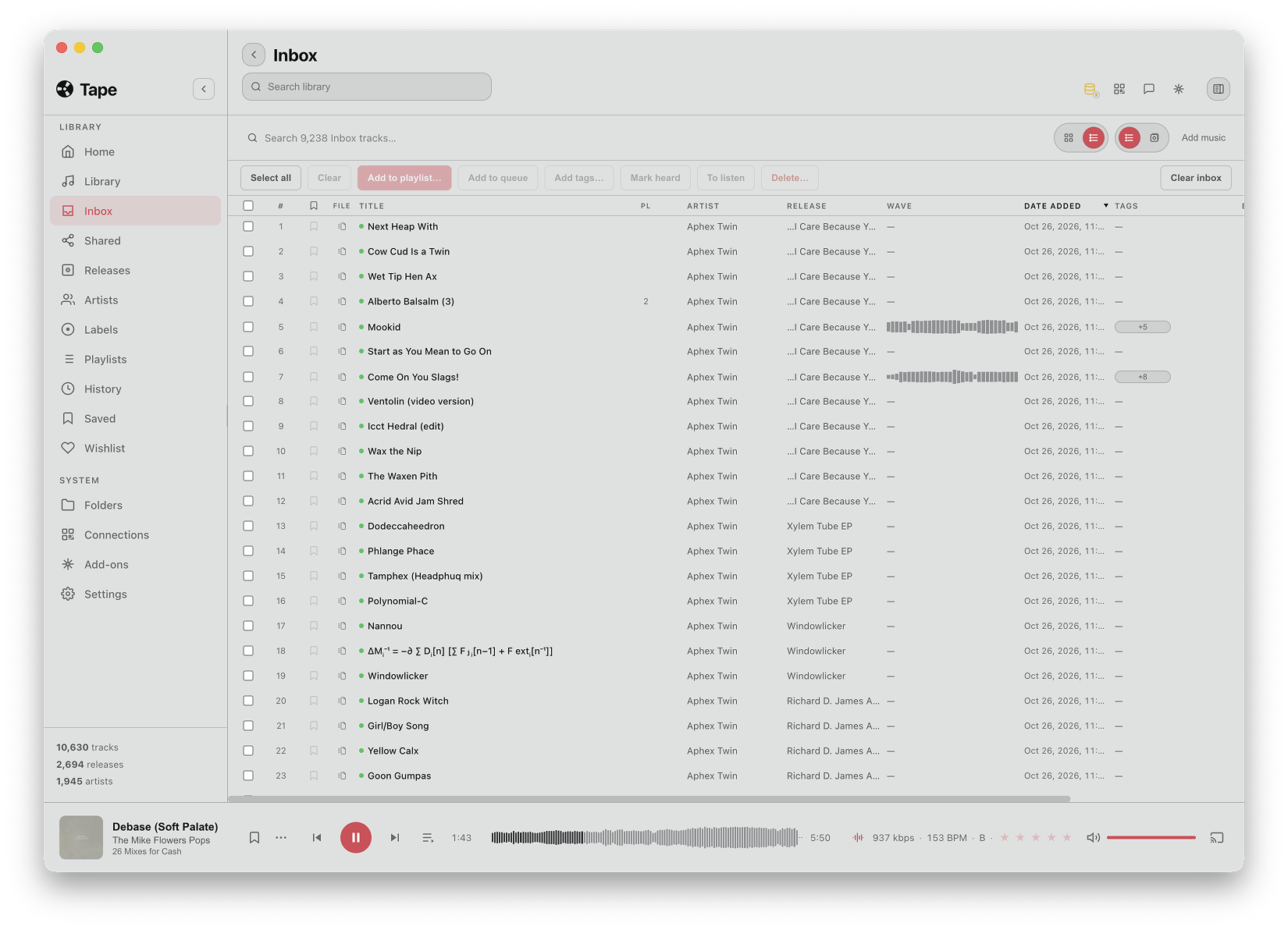
Review arrivals
- Open Inbox and select one track or a small group.
- Listen, mark heard or mark to listen, add tags, or add the selection to a playlist.
- Clear reviewed arrivals when you are done. Marking heard and clearing Inbox are different operations.
- Use the displayed Undo action if the triage was accidental. On Desktop, Cmd+Z / Ctrl+Z also works for Inbox triage outside text inputs.
Do not rely on Inbox undo to recover deleted audio files. Read the filesystem confirmation before using a delete action.
Search, filter and rate
Use Library search for the whole catalog. Searches inside Playlists, Artists, Releases, Saved or Inbox stay scoped to that view. Clearing the search restores the unfiltered list.
Library filters can narrow artist, album, label, genre, tags, year, format, BPM, rating, folder, duration and listening history. For example, combine a folder with a BPM range, then rate a track from its detail view to help find it later. An empty result may simply mean the current filters exclude the track; clear them before rescanning.
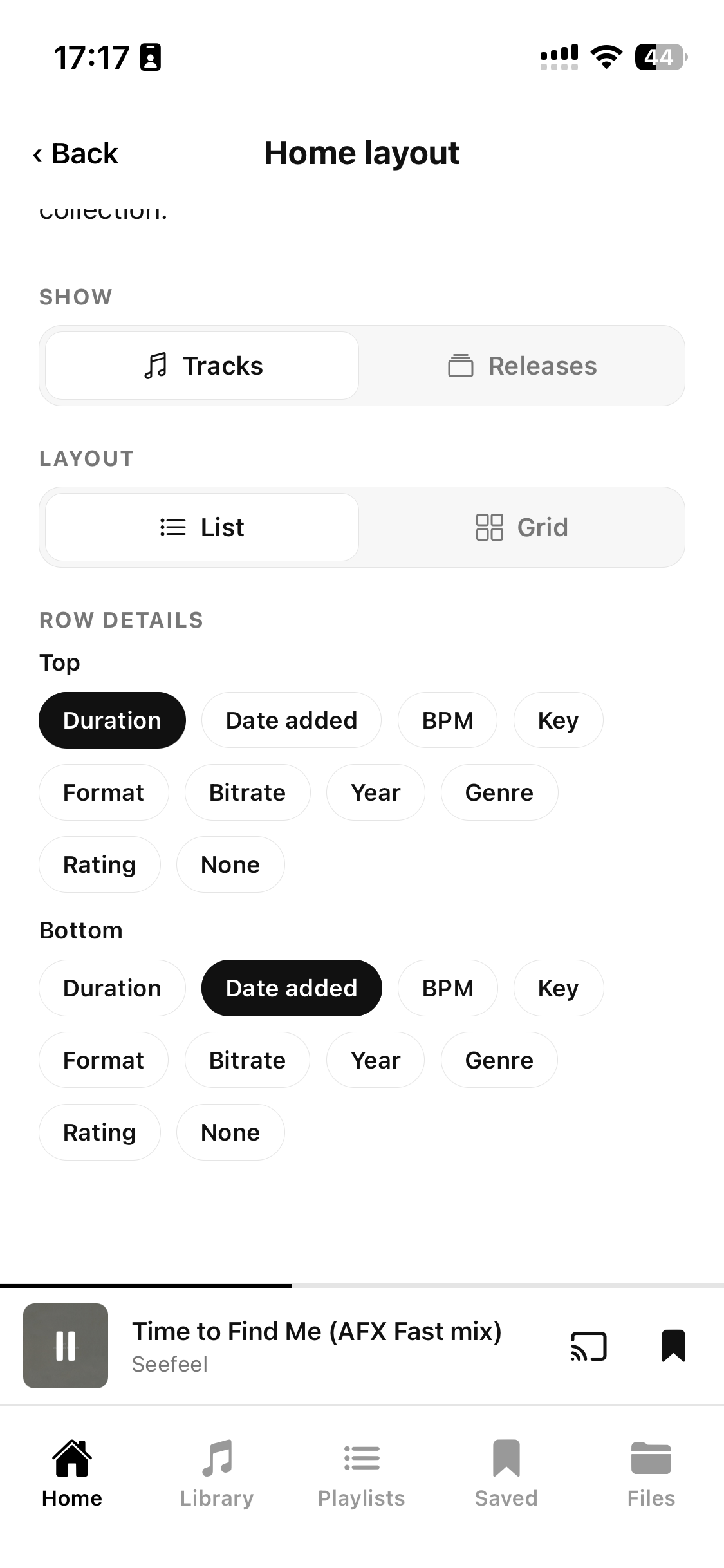
Desktop and phone offer different layouts. On the phone, View options controls the available list/grid and row details for the current screen.
Rescan or reconnect a folder
Keep removable disks mounted at the expected location. For new files that have not appeared, use the folder's rescan action or Full rescan in Settings → Database. Very large libraries may disable automatic watching; schedule a manual rescan after changing their folders.
If a whole folder moved or a drive letter changed, use the hub's folder relocation flow when available, choosing the old and new roots. Relocation is intended to preserve track identity and playlist/history links. Do not delete the database or rebuild it to repair a moved folder.
For missing entries inside an imported playlist, see Playlists and DJ imports. For an unavailable database, see Back up and restore.
What happens on your phone
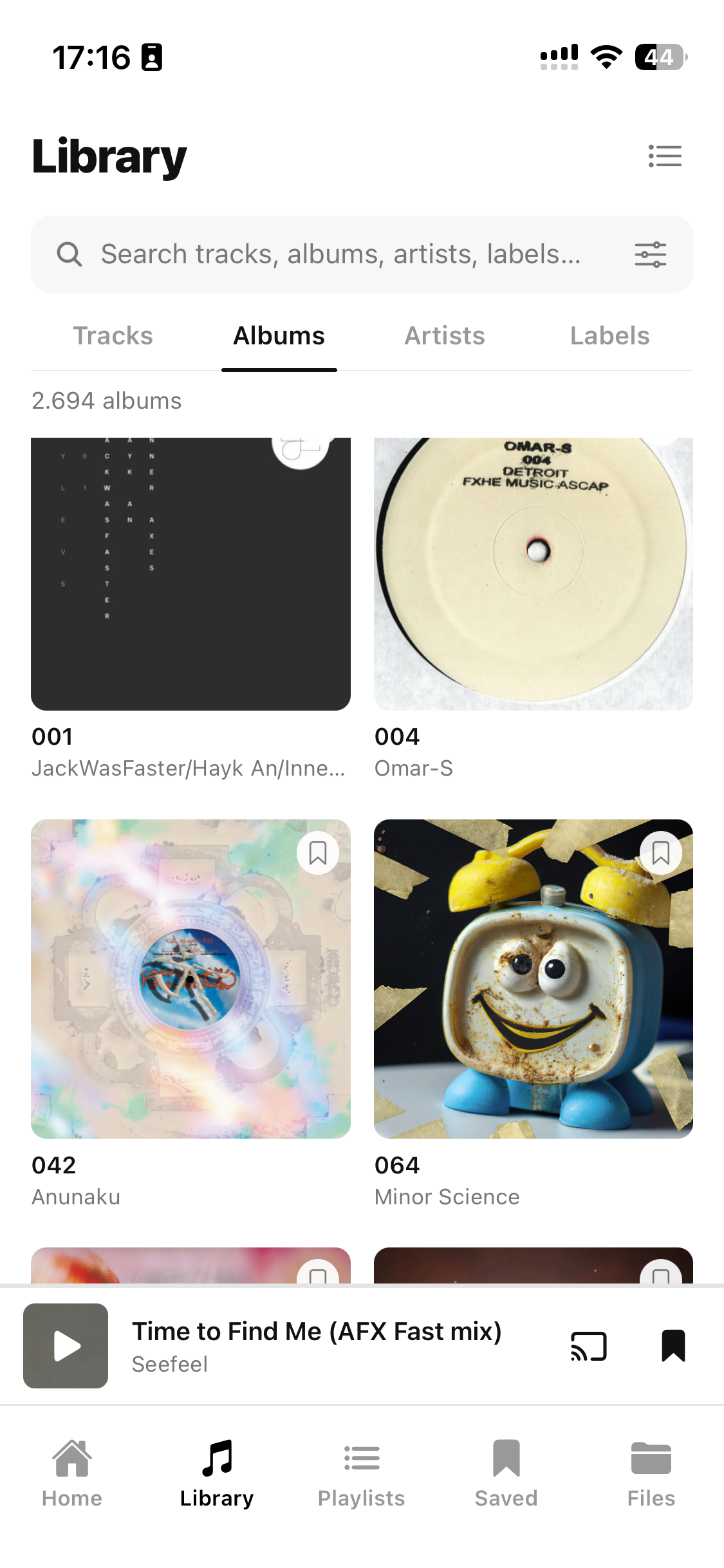
The hub remains the owner of library state. A phone uses the library of the hub it is connected to. Saving a track is not offline audio; see Playback and audio quality.