Playback and audio quality
Your hub serves the music. The device or output you choose produces the sound. Keep the hub running and its computer awake while another device listens.
Play and manage the queue
- Open a track, album or playlist and press play.
- Check that the progress clock advances and that the intended device is producing sound.
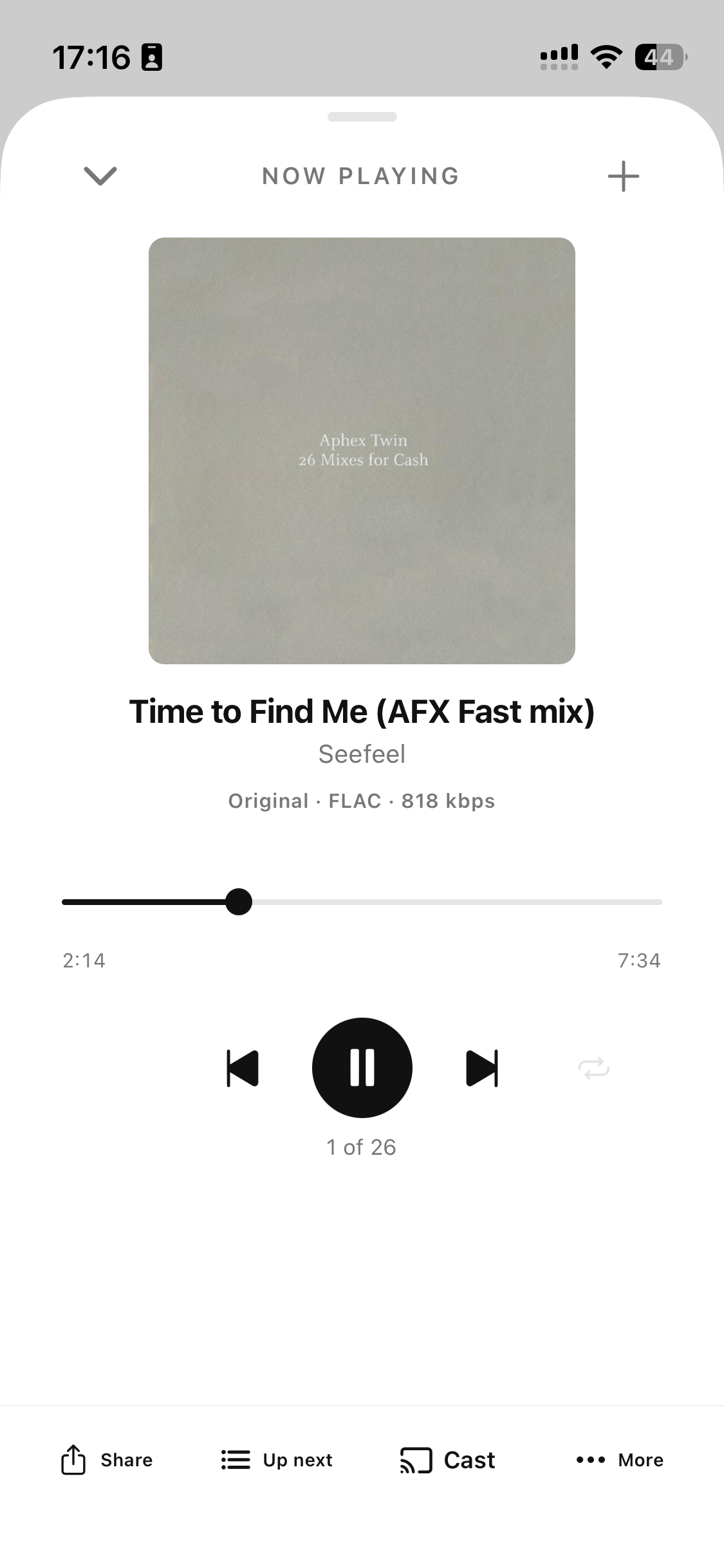
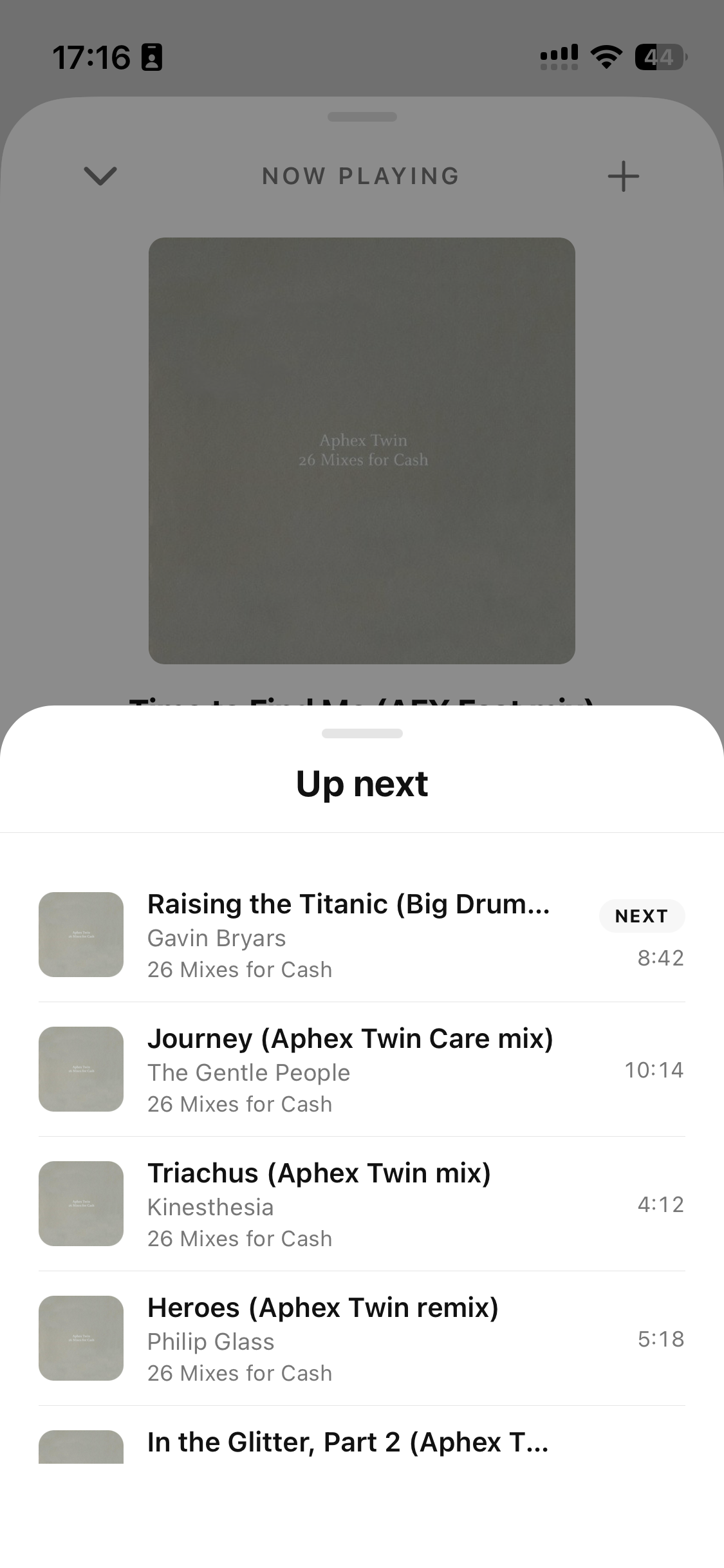
- Open Now Playing or the queue to see the current track and upcoming tracks.
- Use the track menu's queue action to add a track without replacing the current listening context. Choosing play from a new list may replace that context.
Library history and playback session state are stored on the hub. This does not mean every connected phone or computer must output sound together. Check the active output and session before assuming another device has taken over playback.
Choose streaming quality
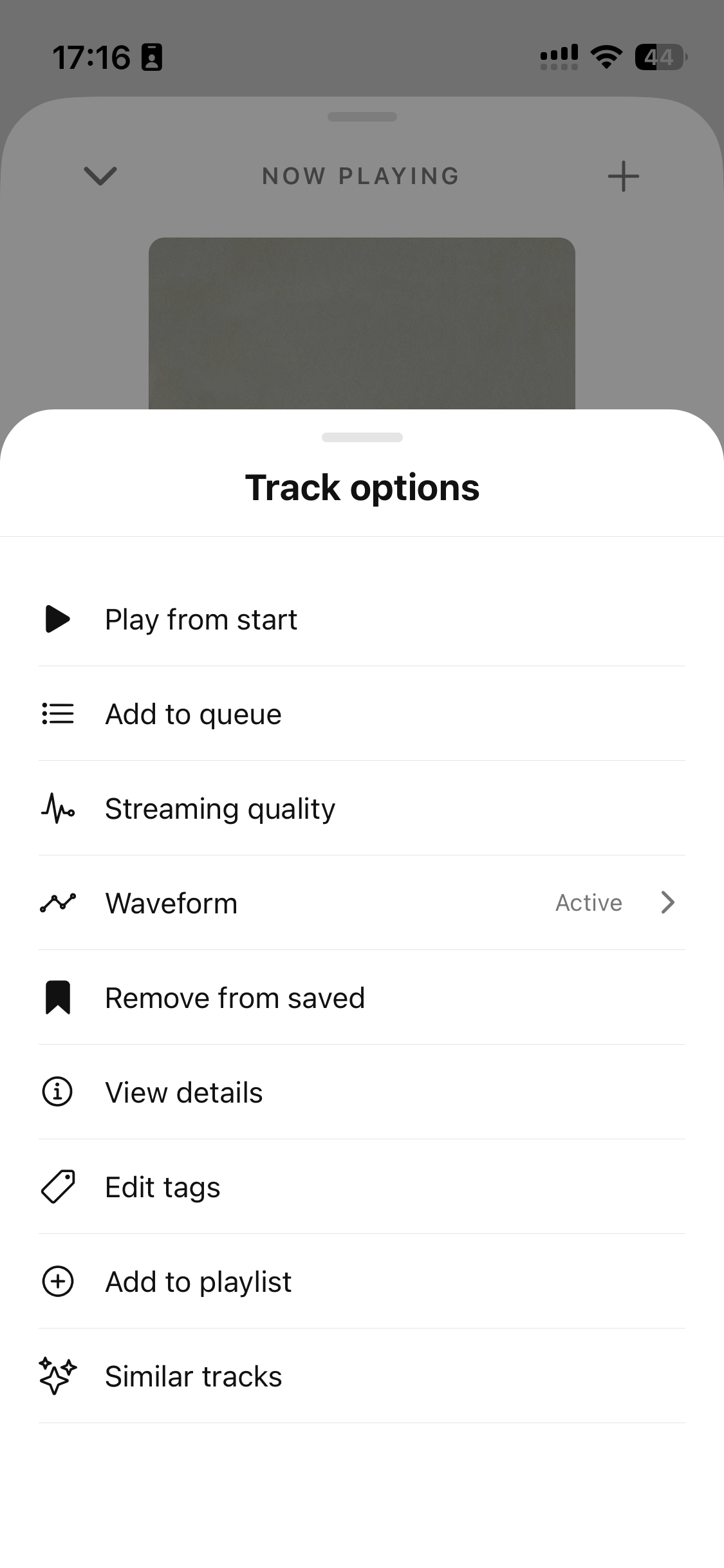
On Desktop open the player's track menu and choose Streaming quality…. On the phone use Streaming quality from Now Playing. Older installed builds may have fewer options.
| Mode | Use it when |
|---|---|
| Adaptive | You want playback to adjust to the route and available bandwidth |
| Maximum | You want a higher target; choose the available AAC/lossless target and allow time to buffer |
| Adaptive low | You want a lower bandwidth ceiling |
Adaptive HLS starts with a small AAC stream to get audio playing. Over Iroh/public remote it can rise to AAC 320 as conditions allow; it does not automatically become FLAC just because the phone is on Wi-Fi. Direct LAN can allow a higher quality. An explicit lossless target still depends on file format, server support and route capacity.
These are quality policies, not promises that a particular bitrate will always be available. If playback repeatedly stops, try Adaptive or Adaptive low before forcing a higher target. See Casting for TV/speaker output and its format limits.
Listen with the screen locked
Start audio in the app, then lock the phone. Supported installed builds use the native player for background audio and lock-screen controls. Keep the hub awake and connected to the internet when you leave home.
Changing from Wi-Fi to mobile data can change the route. A temporary network outage should not erase pairing. Let Tape reconnect; check the hub's availability and connection troubleshooting before scanning another QR.
A screenshot can show the state and controls. To report a stall or unexpected stop, also record the time, phone OS/app build and route, then send phone diagnostics.
Offline listening and saving
Save track is a bookmark. It does not guarantee that audio has been downloaded to the phone. Do not assume an offline library view or cached cover means a track will play without the hub.
Offline audio downloads have a separate release plan. Use an explicit download control only in a build that documents that capability; the stable instructions here do not promise it. If your hub or network is offline, streamed tracks may be unavailable.
No sound or repeated buffering
Check the output volume, mute state, current output and whether the progress clock advances. For Cast, confirm the receiver actually started, not just that a session is connecting. Try a known playable track, a lower quality mode and a stable route. If the failure repeats, collect diagnostics instead of rebuilding the library.